



How does my friend see it on their phone?
You added someone with their phone number. Here is how the same ledger appears on their phone, and what to check if it does not.
Updated
Short answer: your friend installs PayMeLater and signs in with the phone number you saved for them. There is no invite code: the number is the link, and the matching happens on its own. If you want to give them a nudge, the share button on their ledger sends them the tally with a download link (see the tip below).
This works because you added them as a linked contact, which means PayMeLater knows their number. If you are not sure which kind of contact you have, read linked vs offline contacts first.
Step by step
- 1
Check the number on your side
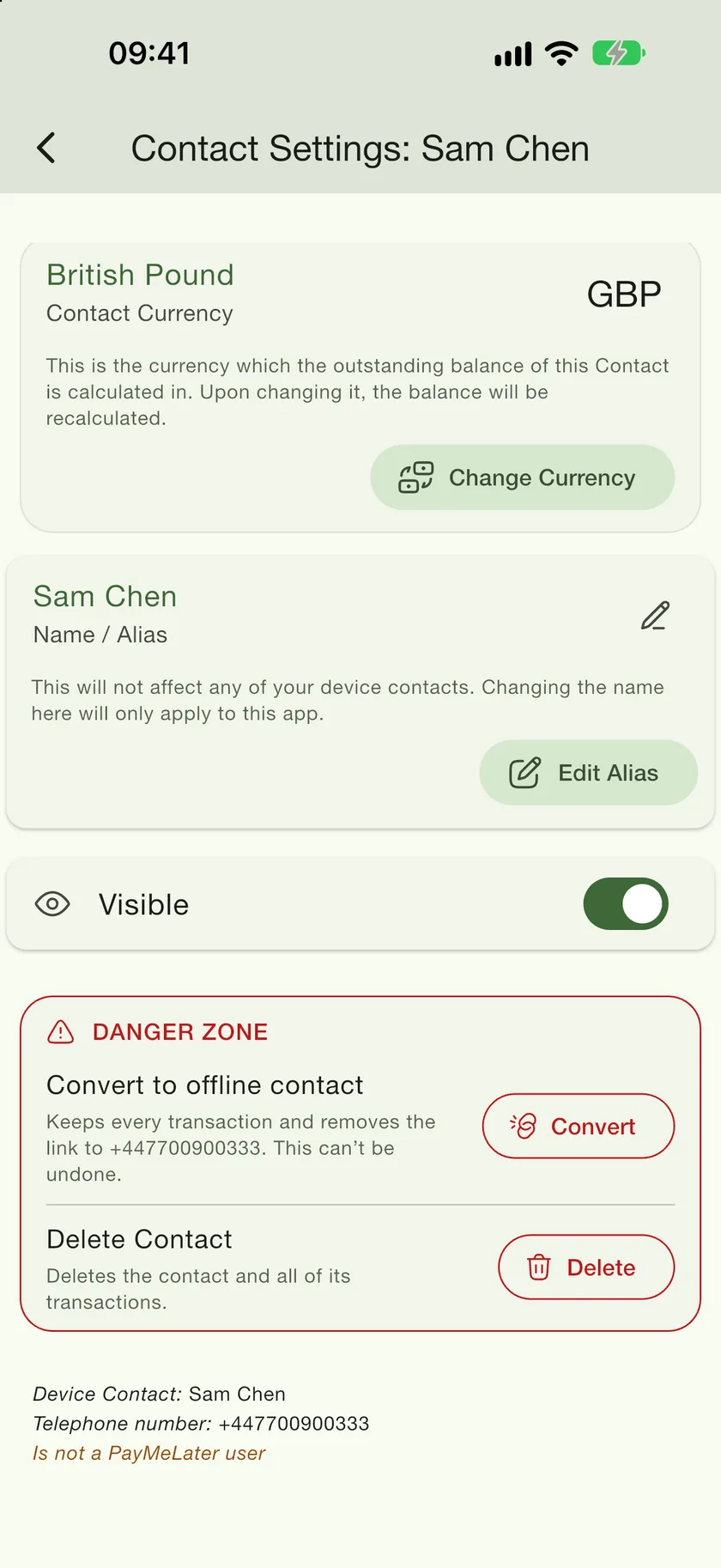
Open the contact, tap the gear, and scroll to the bottom of Contact Settings. The footer shows the exact telephone number PayMeLater is waiting for, and says whether that person is already a PayMeLater user.
- 2
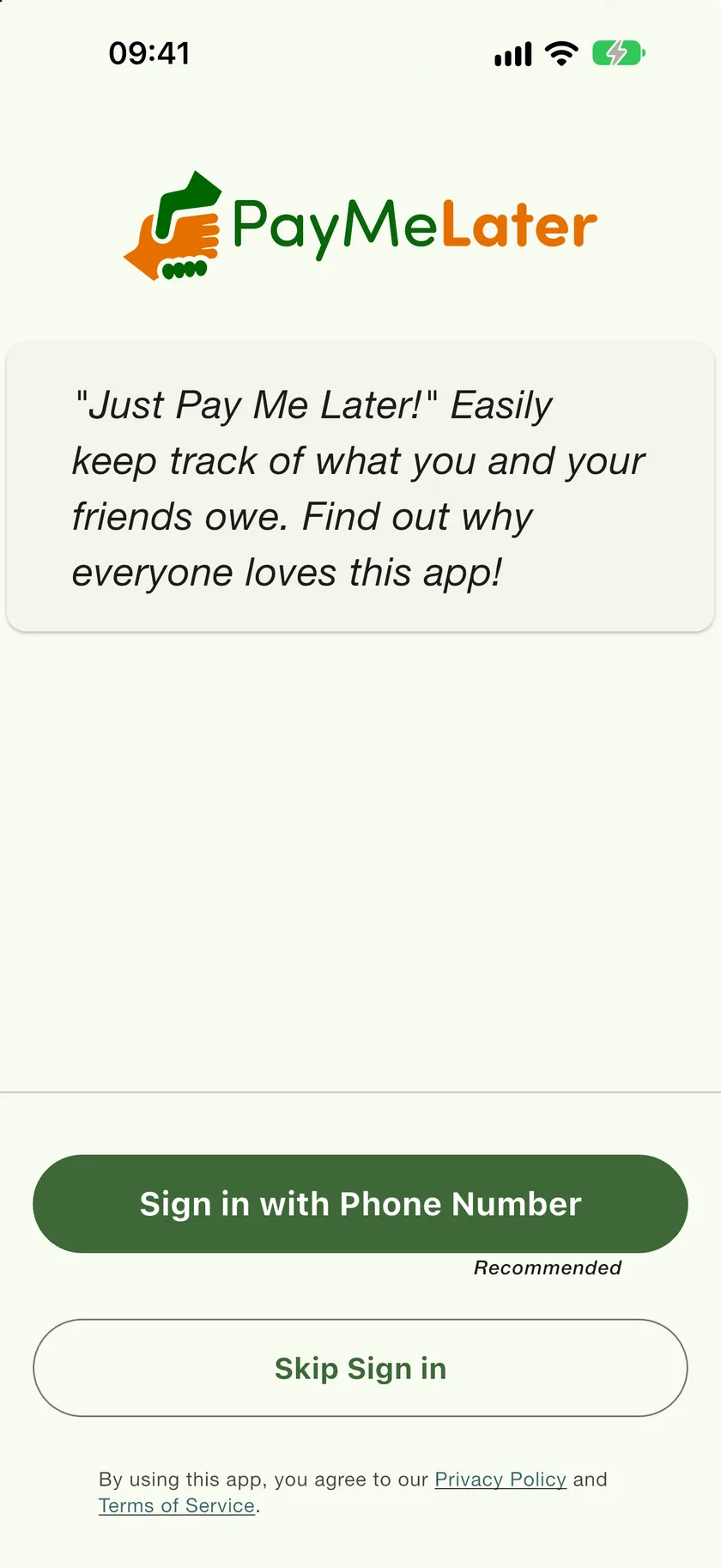
Your friend installs the app and taps Sign in with Phone Number
PayMeLater is free on the App Store and Google Play. On the welcome screen they need the green button, not Skip Sign in: anonymous mode cannot be linked to anyone.
- 3
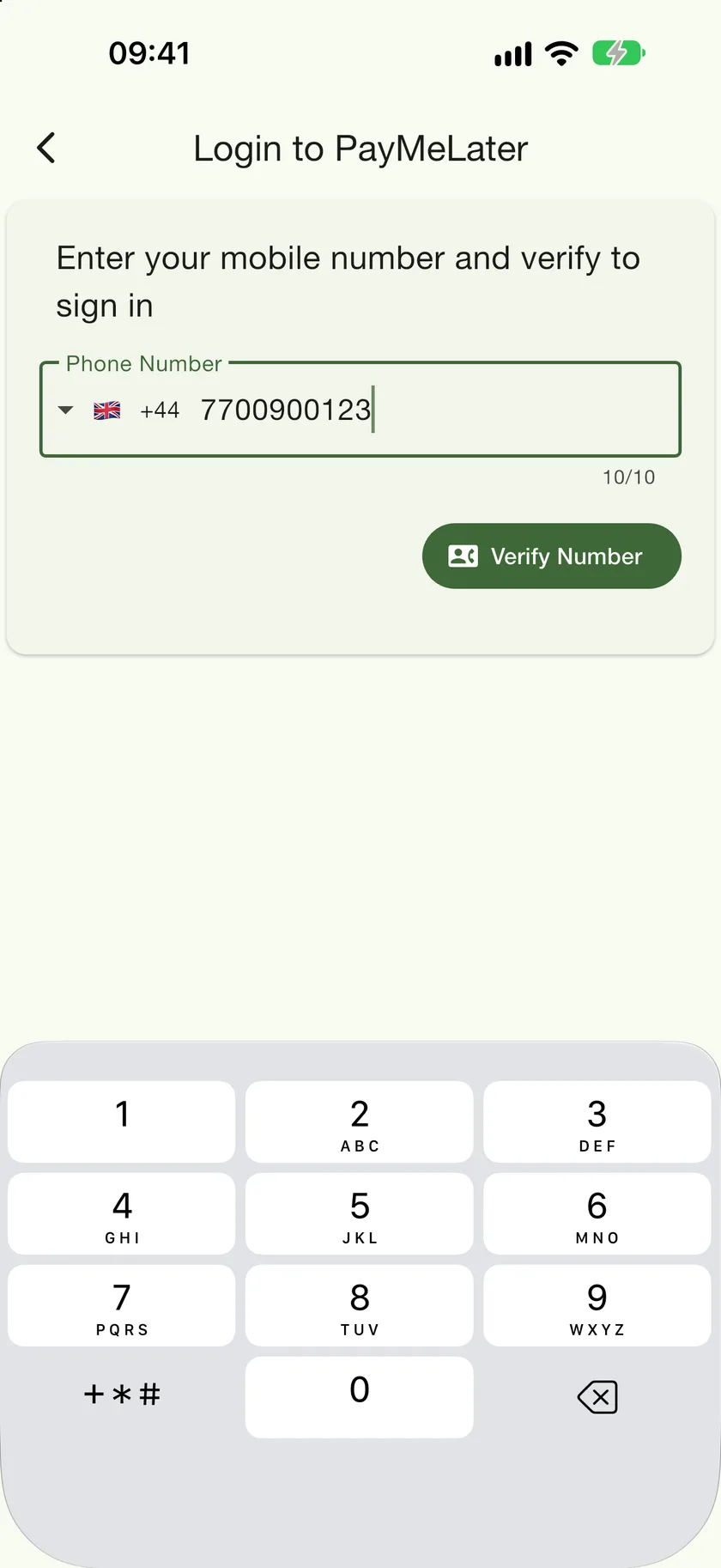
They enter the same number and the code from the text message
The country code matters. If you saved a UK mobile, they sign in as a UK mobile.
- 4
That is it
Their Contacts tab now shows you, with the same balance seen from their side: your +£152 is their -£152. Every entry you logged is there with its reason and date. From now on changes sync both ways, and each of you gets a notification when the other adds, edits or deletes an entry or shares a bill.
If it does not link
- A different number. The link is to the exact number you saved. If your friend signs in with another phone number, nothing matches. Either they sign in with the number you have, or you add them again from the right one.
- Wrong country code. The number is stored with its country code, so check the address-book entry has the right one.
- They joined before you added them. That is fine. Matching works in both directions, and happens as soon as both sides exist.
- Nothing has refreshed yet. Pull down on the Contacts tab, or reopen the app.
- They changed phone number. A friend who has moved to a new number can update it in Settings, under Account, with Change my Phone Number. Their ledgers follow the account.